
The Visit Japan Web login uses the email address and password you registered on the official site, www.vjw.digital.go.jp. Passwords must have at least 10 characters and mix upper-case and lower-case letters, numbers and symbols. If you forget yours, the login screen has a reset link that emails you a confirmation code.
Last checked: 19 October 2026. Based on the Visit Japan Web instruction manual (version 3.16, 22 July 2026) and the Digital Agency’s service pages. Screens change from time to time, so trust the official manual if anything differs.
10+ charactersMinimum password length, with upper case, lower case, a number and a symbol
1 email addressYour account ID; the field accepts up to 128 characters
9 languagesIncluding English, Chinese, Korean, Vietnamese, Thai, German and French
FreeThe Digital Agency says it never asks Visit Japan Web users to pay fees
Where to log in to Visit Japan Web
The only official login page is www.vjw.digital.go.jp, run by Japan’s Digital Agency. The safest way to reach it is through the Digital Agency’s Visit Japan Web information page on services.digital.go.jp, which links to the service with a “Start using the service now” button. Bookmark the login page once you find it.
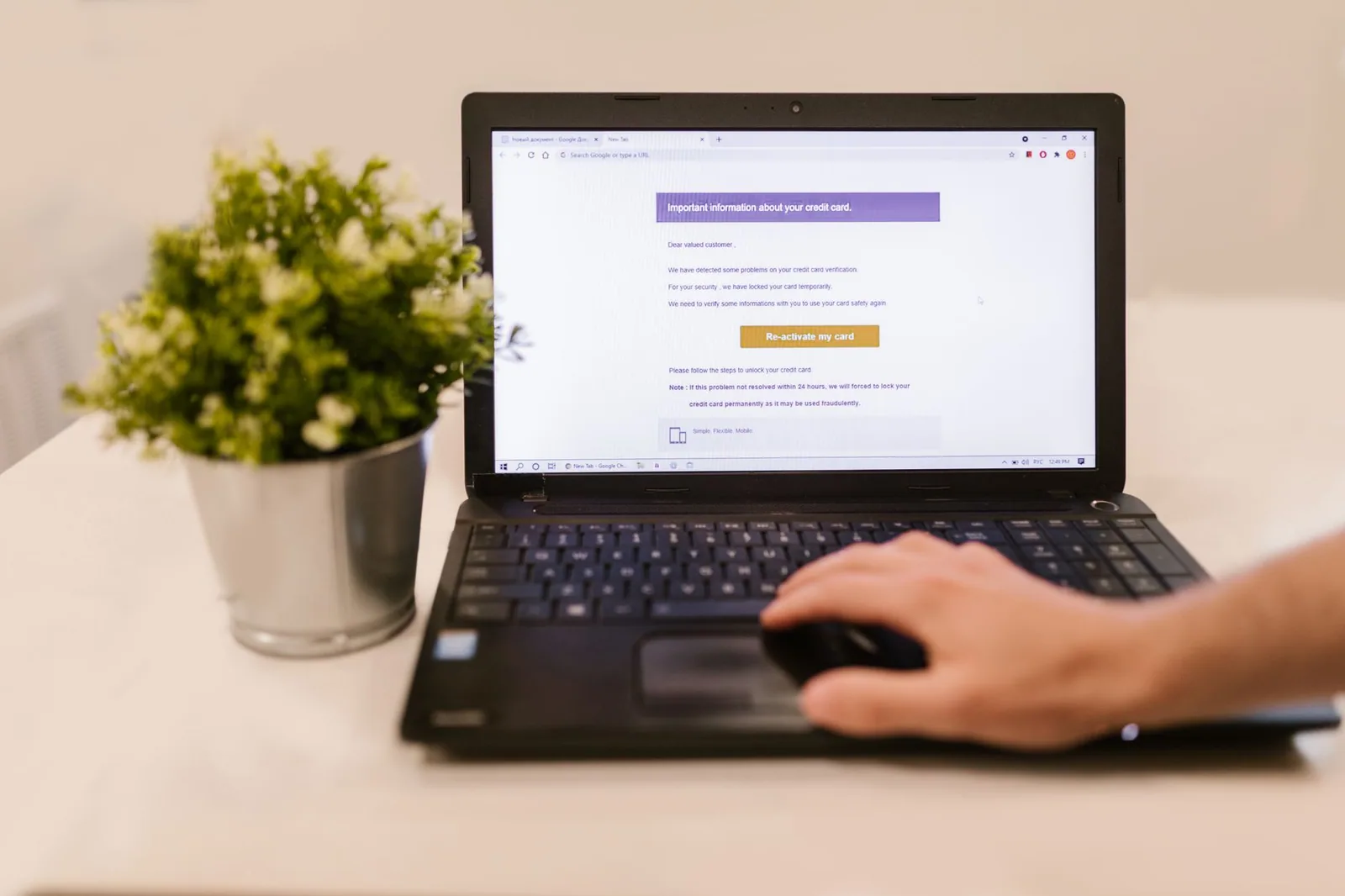
There is no Visit Japan Web app. In December 2023 the Digital Agency warned about suspicious apps such as “Visit Japan Web Info” and told anyone who had installed one to uninstall it. You use the service in a browser on your phone, tablet or computer. Registering on a laptop works fine, but you need a phone or tablet to show the QR code at the airport.
Creating an account before your first login
You cannot log in until an account exists. The manual describes five short steps:
- Click Create an account on the login screen.
- Tick “I agree to the Terms of Use” and “I agree to the Privacy Policy”, then click Next.
- Enter your email address, a password, the password again, and tick I am human.
- Type the confirmation code that Visit Japan Web sends to your inbox and click Create an account.
- Wait for “Your account has been successfully created”, then go to the login screen.
Keep the confirmation code screen open until the account is created. If you close it, the code stops working and you start again from step 1. Already registered? The system answers “This email address is already registered”. In that case use the password reset instead of a second account.
Password rules
Visit Japan Web accepts a password of 10 characters or more that combines upper-case Latin letters, lower-case Latin letters, numbers and symbols. The allowed symbols are + – * / = . , : ; ` @ ! # $ % ? | ~ ^ ( ) [ ] { } and the underscore. The manual’s own example is Ab1234567+. A password manager saves you from retyping a long string on a small screen at the gate.

Signing in, step by step
On the login screen, choose your language, type your email address and password, and click Login. The eye icon shows or hides what you typed, which helps you catch a missing symbol. A “Remember me” box keeps the email filled in next time.
At your first login Visit Japan Web asks whether you want multi-factor authentication. It is optional and the service works normally without it. If you say yes, you link an authenticator app such as Google Authenticator or Microsoft Authenticator by scanning a QR code or typing a secret key. From then on, each login asks for the verification code shown in that app.
Think twice before turning it on if you might change phones before the trip. The service warns you not to delete your account or uninstall the authenticator app after setup, because the login then depends on that app.
Common login problems and what fixes them
Most failed logins come down to four things: a typo, a missing email, an expired code, or old data in the browser. The table pairs the messages Visit Japan Web shows with the fix the manual points to.
| What you see | Likely cause | What to do |
|---|---|---|
| Invalid email address or password | Typo, or a different email than the one you registered | Check the address, show the password with the eye icon, or reset it |
| No confirmation email | Spam filter or blocked sender | Check spam, allow mail from @vjw.digital.go.jp, confirm the address, then click Reissue confirmation code |
| The verification code has expired | Screen closed or code too old | Start the step again and use the newest code |
| Authentication error. Please clear your cache and log in again | Stale browser data | Clear the browser cache, then log in again |
| Discrepancy between the server and the device | Edits made on two devices | Log in again online to load the latest data |
Resetting a forgotten password
Click When you forgot your password on the login screen and enter the account email. Visit Japan Web sends a confirmation code. Enter that code plus your new password twice, then click Reset your password. Leave the screen open while you wait for the email, or the code is invalidated. When “A new password has been set” appears, log in with the new password.
For example, a traveller who registered with a work address and later tries a personal Gmail address will get “Invalid email address or password” every time. Resetting the password for the Gmail address will fail too, because no account exists for it. Try the other address first.
Changing or deleting the account
Once logged in, open the menu and choose Change Password to set a new one. To start over completely, use “When you want to delete your account” on the login screen. Deletion removes everything you registered in Visit Japan Web, but details already submitted to government agencies are not deleted. You can open a new account with the same email address afterwards.
Staying logged in for the flight
Log in and display your QR code before you board. The Visit Japan Web FAQ says the service needs an internet connection and suggests airport Wi-Fi. The instruction manual also describes an offline mode: you add Visit Japan Web to your home screen from Safari or Chrome, and then you can view registered trips and show the QR code without a connection.
Offline mode has limits. Creating an account, logging in and changing your password all need a connection, and you must have logged in online beforehand. The service warns that if you log out while offline, data you are entering may be lost and you need a network to log in again. So if you plan to use it on the plane, stay logged in.
Picture a family landing at Haneda after a 14-hour flight with roaming switched off. If one parent logged out on the plane, they will need airport Wi-Fi before they can show any code. Staying logged in avoids that queue-side scramble.

Why your login will matter more once JESTA starts
Visit Japan Web is optional today. You can still fill in paper forms on arrival. That may change in practice once JESTA, Japan’s planned travel authorisation, begins. The government is targeting fiscal year 2028 (April 2028 to March 2029), and the law sets a deadline of 31 March 2029.
The Immigration Services Agency has told the Diet that approved JESTA travellers will use a kiosk and walk-through gate, and that the gate requires an ED card submitted through Visit Japan Web. Nothing about JESTA logins or fees has been announced, and there is no official JESTA website yet. Read how JESTA is planned to work for the details known so far.
Before you book, check whether you need a visa at all with our Japan visa checker. After logging in, the Visit Japan Web guide covers registration, and the customs declaration guide explains what to declare.
Visit Japan Web login FAQ
Does Visit Japan Web have a separate username?
No. Your email address is the login ID. You sign in with that address and the password you set when you created the account.
Can I share one login with my family?
Yes. One account can register up to 10 family members who travel with you, and you can show each person’s QR code from the same phone.
I never received the confirmation code. What now?
Check your spam folder, make sure mail from @vjw.digital.go.jp is not blocked, confirm the address is typed correctly, then click Reissue confirmation code.
Is multi-factor authentication required?
No. It is optional. If you set it up, you need the authenticator app every time you log in, so do not delete that app before your trip.
Does anyone charge a fee to log in?
No. The Digital Agency said in June 2025 that it never asks Visit Japan Web users to pay fees. A site asking for payment is not the official service.
Sources
- Digital Agency: Visit Japan Web
- Digital Agency: How to use Visit Japan Web
- Visit Japan Web: official service
- Digital Agency: warning about sites charging fees (5 June 2025)
- Digital Agency: warning about suspicious apps (14 December 2023)
Japan ESTA Guide is an independent information website. It is not run by or affiliated with the Government of Japan. You cannot apply for JESTA here.